
Two computers, one desk
A rated E remix of the tale of two humans and a cup

This article is about switching displays and peripherals between 2+ machines. I was streaming and a co-worker asked me to write a post about it (hardware at the bottom).
Assumptions
Switching displays and inputs via terminal or key bind is useful to you.
You have 2+ computers, multiple monitors, and multiple peripherals.
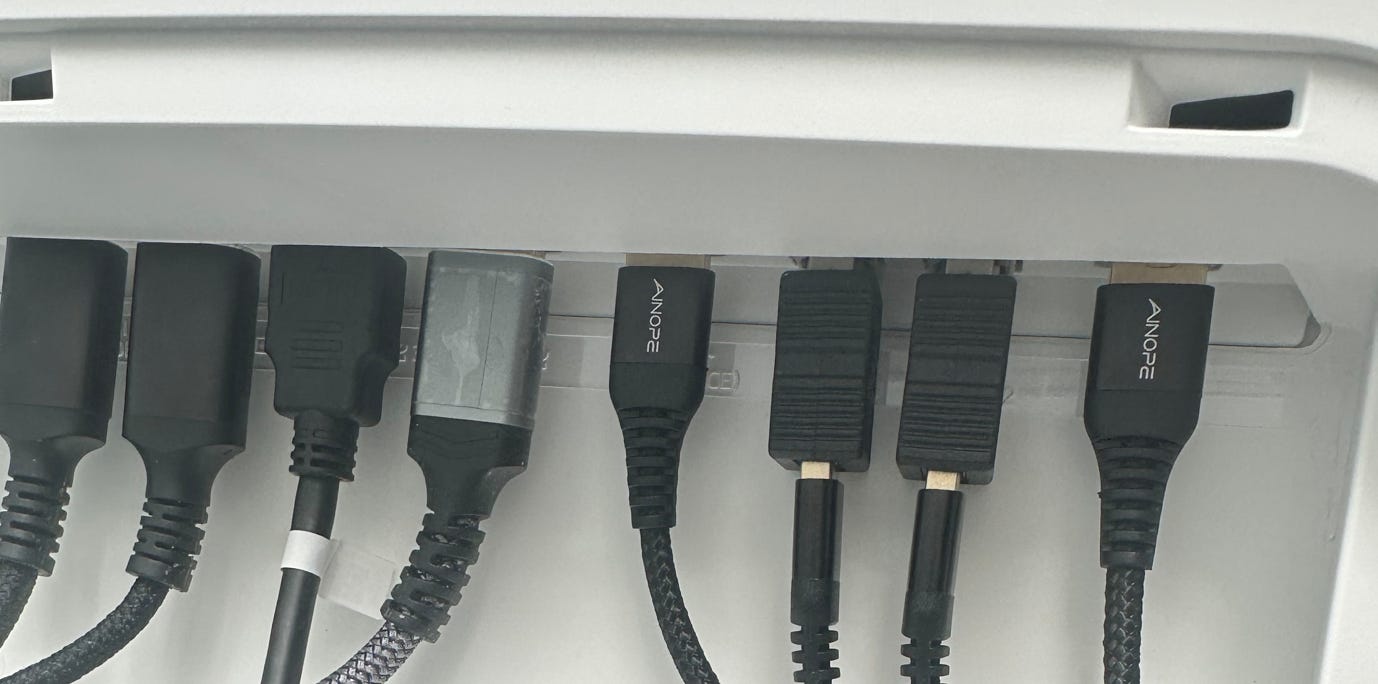
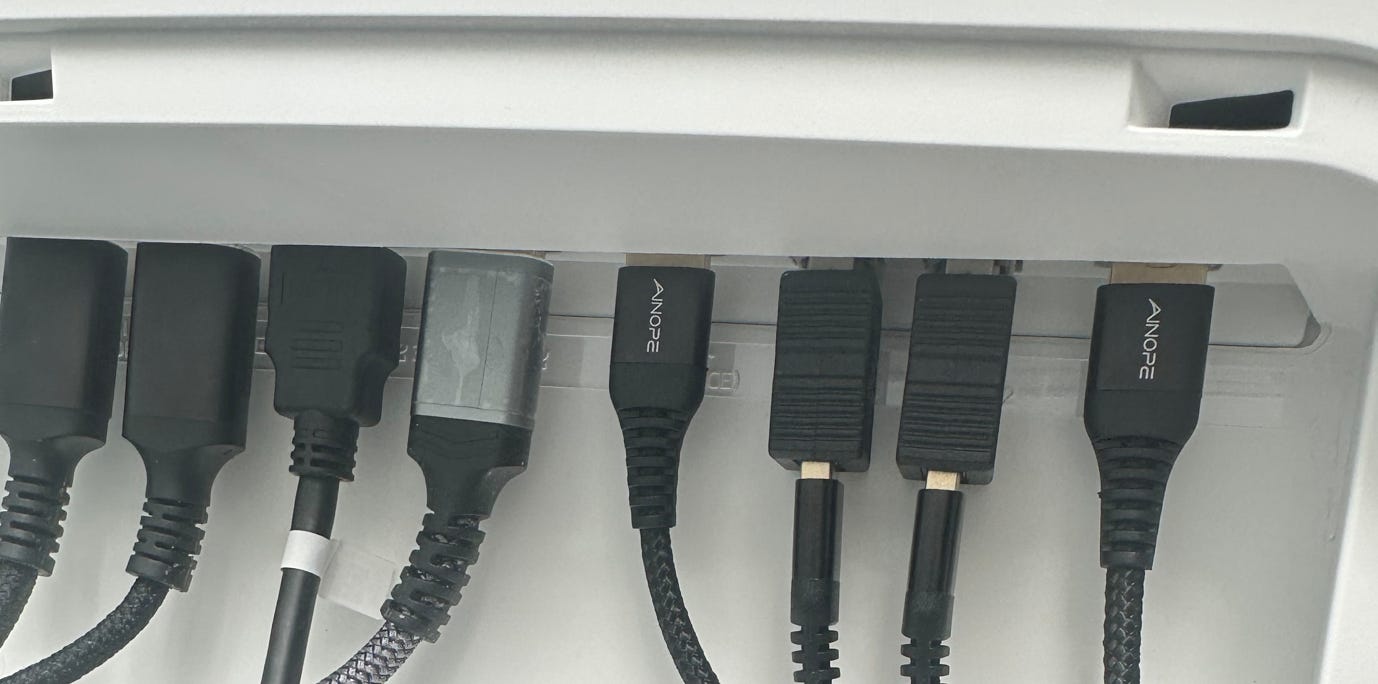
At least one monitor has USB ports on the back (DDC and KVM):
Implementation
The outputs are often USB B so you’ll want these and USB A extenders to route them.
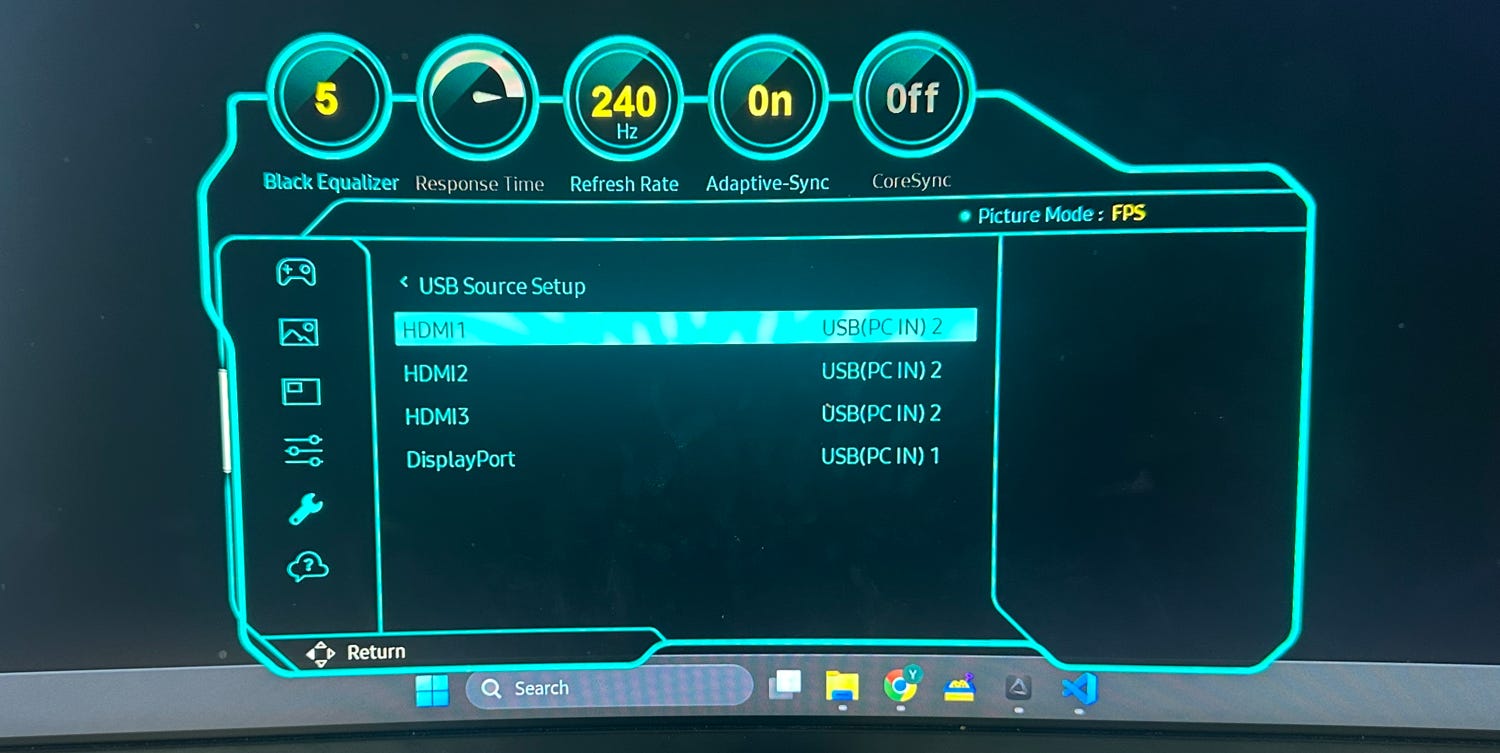
On the Odyssey G95NC, the KVM settings are in “System” → “USB Source Setup”:
MacOS
The side displays linked below are not good out of the box on MacOS. I’m not an expert on these things but I run them at 2048 x 1280, 10-bit Generic RGB profile (the one they ship with sucks), 88% Brightness, 25% Contrast, +15% Temp, -53% Gain.
brew tap waydabber/betterdisplay
brew install waydabber/betterdisplay/betterdisplaycli
brew install --cask betterdisplay

curl -fsSL -o displaySetupMac.sh https://raw.githubusercontent.com/NotYevvie/OnlyLocals/499838a56835b1262baac1992f9bc7c6b71a4595/scripts/displaySetupMac.sh

# We've anchored the link but you should always check sha256:
echo "fa79b5b8c27c48b0e7ca07a467ff1bcbb54eb795491888014bb3aeaff6e7e59a  displaySetupMac.sh" | shasum -a 256 -c

# Script walks you through the rest
chmod +x displaySetupMac.sh
./displaySetupMac.sh
The KVM follows the active display so these commands also swap your peripherals. PC users can easily adapt this logic1. On Mac, I bind them to hotkeys using skhd:
brew install koekeishiya/formulae/skhd
brew services start skhd

# In ~/.config/skhd/skhdrc, you'd bind them with something like:

cmd + shift - m : zsh -c "source ~/.zshrc && ,bmac"
cmd + shift - p : zsh -c "source ~/.zshrc && ,bdpc"
Your MacBook Pro keyboard shortcuts now switch displays and peripherals between [n] machines! As a cherry on top, you can also use your MBP as a screen for your PC.
Hardware Setup
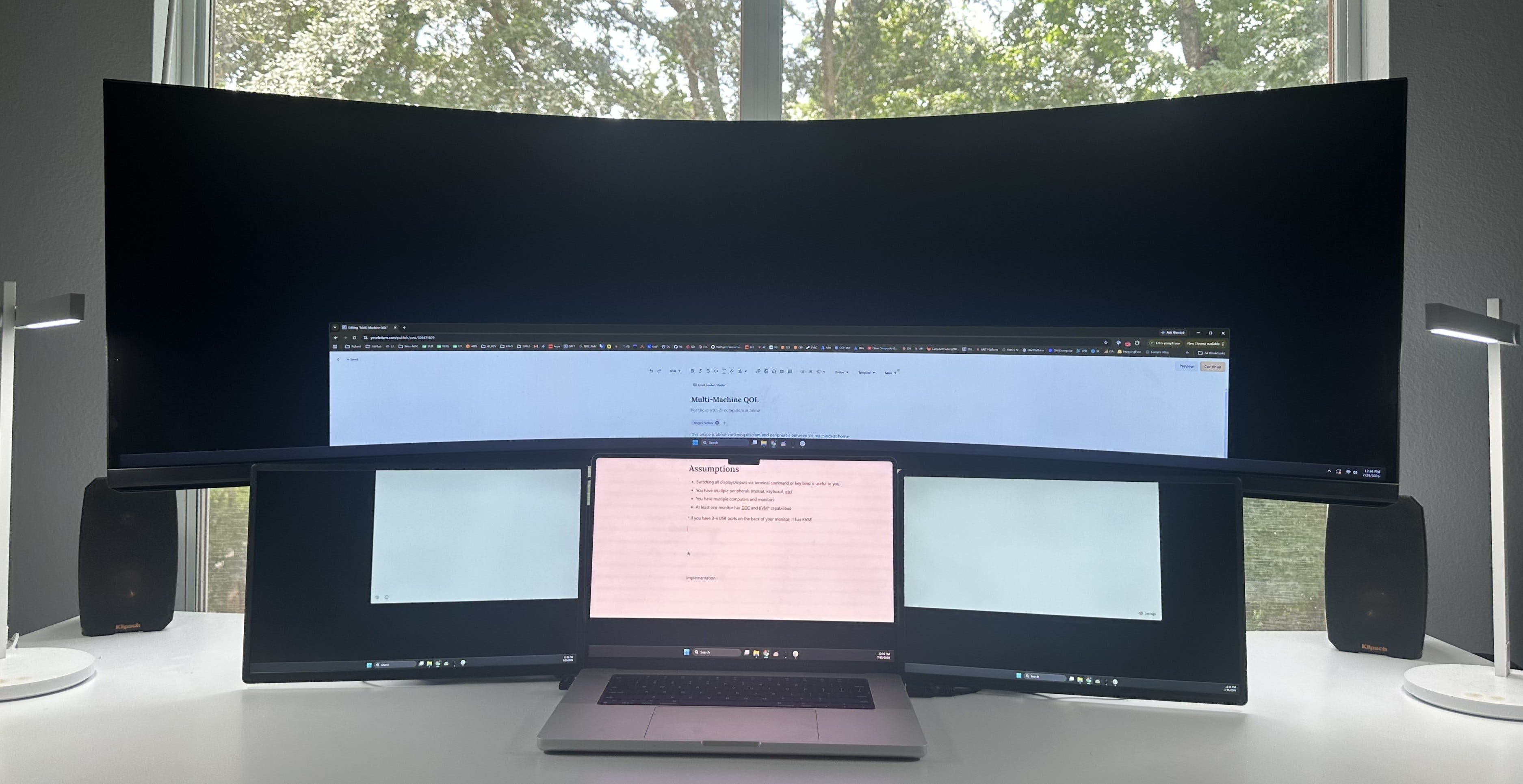
Was also asked to list the parts for my setup, which looks like:
Heads up: affiliate links.
Go-bag: Anker 160W GaN + this hub
The keyboard and mouse support wired and wireless and are great for traveling. The screens, however, are absolute sh*t for travel. I keep a set of these in my go-bag.
* You have to set your G95NC to DisplayPort 2.1, use at least a 32Gbps+ cable (these get finicky at higher bandwidths - I use this one), and have a GPU that supports DSC.
Use ddcutil and sxhkd if you run Linux. Most of my series are targeted at WSL, where you’ll want ControlMyMonitor on the host and then call it from inside WSL with something like:/mnt/c/path/to/ControlMyMonitor.exe /SetValue Primary 60 15